
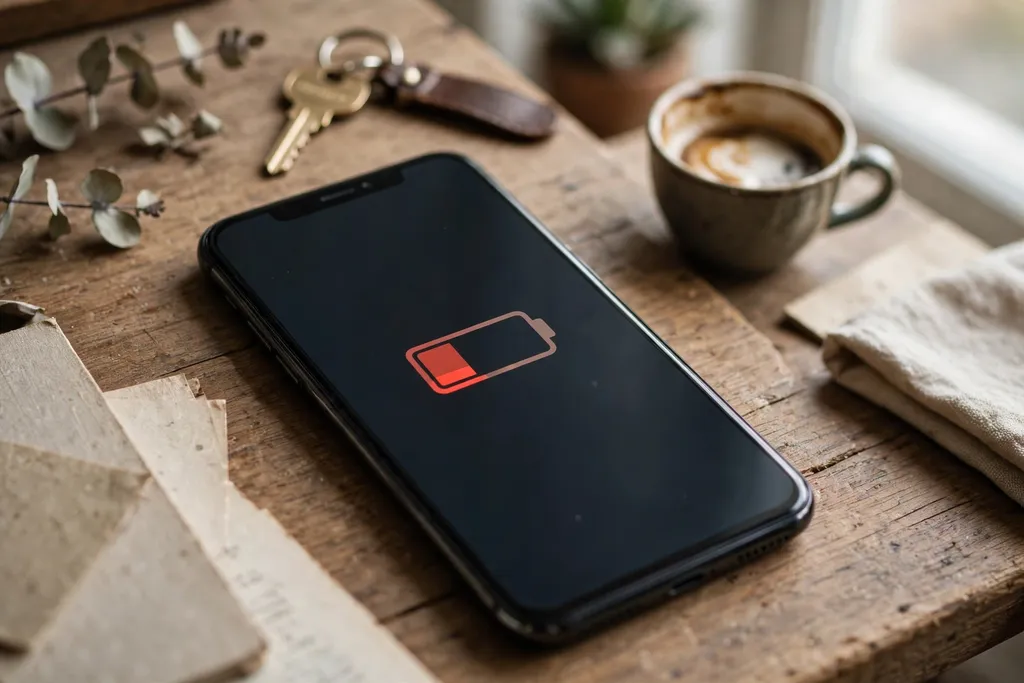
Why Is My Phone Battery Draining So Fast? 12 Fixes That Actually Help
Your phone was fine last month, and now it is begging for a charger by mid-afternoon. Nothing obvious changed, which makes it all the more frustrating. So why is my phone battery draining fast? In most cases it is not one dramatic fault. It is a handful of ordinary causes stacking up: a bright screen that stays on too long, a weak signal that keeps the phone hunting for a tower, apps refreshing and tracking location in the background, an app gone rogue after an update, heat, or simply a battery that has aged past its best. The good news is that most of these are fixable in a few minutes, and the order matters. Start with the biggest drains first, check what is actually using your battery before changing anything, and you can usually recover a meaningful chunk of the day without buying anything at all.
First, Find the Actual Culprit
Before changing settings at random, look at the evidence your phone already collects. On an iPhone, go to Settings, then Battery, and look at the battery usage list, which shows which apps used the most power over the last 24 hours or 10 days, and whether that use happened on screen or in the background. On Android, go to Settings, then Battery, then Battery usage, for a similar breakdown. This one step changes the whole job. If the screen sits at the top of the list, brightness and screen-on time are your problem. If one app towers over everything else, you have a runaway app. If the list looks ordinary but the battery still falls fast, signal strength or battery age moves to the top of the suspect list. Guessing wastes time and can make things worse, like restricting an app you actually need while the real drain carries on untouched. Spend two minutes on this screen first, and let it tell you where to start.
The 12 Fixes, in Order of Impact
- Turn on auto-brightness and lower the brightness a notch — the screen is usually the biggest single drain.
- Shorten the screen timeout so the display switches off sooner when you set the phone down.
- Connect to Wi-Fi where it is available, and avoid leaving the phone hunting for signal in a dead zone.
- Turn off 5G auto-searching where your phone allows it, or let the phone drop to a steadier connection in weak coverage.
- Restrict background app refresh for apps that do not need to update constantly.
- Change location access to While Using the App for apps that do not need to know where you are all the time.
- Switch push email to fetch on a schedule, or lengthen the fetch interval, for accounts that do not need instant delivery.
- Find the runaway app in battery usage, update it, restrict it, or reinstall it.
- Restart the phone after an update or when drain suddenly appears for no clear reason.
- Keep the phone cool: take it out of direct sun and off a hot dashboard, and let it cool before charging if it feels hot.
- Turn on battery saver or adaptive battery features for heavy days.
- Check battery health, and replace a worn battery rather than the whole phone when the phone itself is otherwise fine.
Fix the Screen First: Brightness and Screen-On Time
The screen is the hungriest component in a modern phone, and it is also the easiest to tame. A display at full brightness, left on for minutes at a time, will eat through a charge far faster than most apps ever will. Turn on auto-brightness or adaptive brightness so the phone dims itself indoors instead of blazing away at a level meant for sunlight. On an iPhone, that lives under Settings, then Accessibility, then Display and Text Size. On Android, it is usually under Settings, then Display, then Adaptive brightness. Then shorten the screen timeout — 30 seconds or 1 minute is plenty for most people — so a forgotten phone goes dark instead of glowing on a table. Dark mode can help on phones with OLED screens, where black pixels draw very little power, though the saving is modest compared with brightness itself. The habit that matters most is simple: brightness down a notch, screen off sooner. Together those two changes alone often make the most visible difference of anything on this list, because they attack the drain that runs every minute the phone is in your hand.
Weak Signal and 5G Searching: The Hidden Drain
A phone in a weak signal area works much harder than one with a strong connection. When coverage is poor, the phone boosts its radio power and keeps searching for a better tower, and that searching runs in the background whether you are using the phone or not. That is why a battery can drain quickly on a road trip through patchy coverage, in a basement office, or in a rural area, even with light use. Where Wi-Fi is available, connecting to it takes the load off the mobile radio and usually improves battery life. If you are stuck in a dead zone for a while, airplane mode is the honest fix: it stops the searching entirely, at the cost of being unreachable until you switch it back. On the 5G question, a phone that keeps flipping between 5G and LTE in marginal coverage can burn power on the switching itself. On an iPhone, Settings, then Mobile Data or Cellular, then Voice and Data lets you choose 5G Auto, which drops to LTE when 5G offers no real benefit. On Android, the equivalent mobile network setting lets you prefer a steadier connection type. You do not need to abandon 5G, but in weak coverage, letting the phone settle on a stable connection beats constant hunting.
Background App Refresh, Location, and Push Email
Background activity is the drain people notice least, because it happens while the phone is in a pocket. Social apps, news apps, and shopping apps refresh their feeds in the background so content is ready when you open them. Each refresh is small, but dozens of apps doing it all day adds up. On an iPhone, Settings, then General, then Background App Refresh lets you turn it off entirely or per app — keep it on for messaging and navigation, and switch it off for games, shopping, and news you can refresh yourself. On Android, Settings, then Apps lets you restrict background use per app, and Battery optimization settings can limit apps you rarely open. Location is the same story. Many apps ask for location access on setup and keep it forever. Change location permission to While Using the App, or Allow only while using, for everything except navigation, ride-hailing, and the few apps that genuinely need it in the background. On an iPhone that is Settings, then Privacy and Security, then Location Services. On Android it is Settings, then Location, then App permissions. Push email deserves a look too: with push, the server tells the phone the instant mail arrives, which keeps a connection open. Switching a non-urgent account to fetch every 30 minutes, or to manual, removes a constant background chore. On an iPhone, that is Settings, then Mail, then Accounts, then Fetch New Data. On Android, it varies by mail app, but most offer a sync frequency setting. None of these changes makes the phone worse to use in any serious way — they just stop apps from working when you are not looking.
The Runaway App After an Update
Sometimes the drain starts overnight, right after a software update or an app update, and the battery usage screen points at one app using far more power than everything else. A few things can cause this. An update can leave an app stuck in a loop, syncing or retrying a failed task over and over. The phone itself may also work harder for a day after a system update while it re-indexes files and photos. The distinction matters: system settling usually fades within a day or two, while a stuck app does not fix itself. Start with a restart, which clears stuck processes and is the most underrated fix in phone troubleshooting. If the same app is still at the top of the usage list afterwards, update it — developers often ship a fix quickly for a battery bug — and if that fails, restrict its background activity or uninstall and reinstall it. Reinstalling clears corrupted cached data that an update can leave behind. Only when one app remains stubbornly hungry after all of that should you consider the battery itself as the cause. Jumping straight to a battery replacement when a single app is misbehaving is an expensive way to fix a software problem.
Heat: The Drain That Also Damages
Heat deserves its own section because it both drains a battery faster in the moment and wears it out over time. A phone left on a car dashboard in summer sun, in a hot pocket on a run, or charging under a pillow will run hot, and a hot battery discharges less efficiently and ages faster. Lithium-ion batteries are chemical devices, and high temperatures speed up the chemical wear inside them. The practical rules are plain: keep the phone out of direct sun, do not leave it in a hot car, and if it feels hot, let it cool down before plugging it in to charge. Remove a thick case while charging if the phone runs warm, since cases trap heat. Wireless charging and fast charging both generate extra warmth, so on a very hot day, a slower wired charge is kinder to the battery. A phone that regularly feels hot to the touch is telling you something, and it is worth finding out why — a runaway app and heat often arrive together, since a stuck process drives the processor hard and warms the whole device.
Check Battery Health on iPhone and Android
Every rechargeable battery wears out. Each full charge cycle — using an amount equal to 100 percent of capacity, spread across one day or several — shaves a little off the battery's total capacity, and after a few years the phone simply holds less charge than it did when new. That is normal ageing, not a fault, and checking it stops a lot of pointless troubleshooting. On an iPhone, go to Settings, then Battery, then Battery Health, and read Maximum Capacity, which measures capacity relative to when the phone was new. On iPhone 14 models and earlier, the screen is called Battery Health and Charging. Apple designs iPhone 14 models and earlier to retain 80 percent of original capacity at 500 complete charge cycles under ideal conditions, and iPhone 15 models and later to retain 80 percent at 1,000 cycles. On Android, the path depends on the maker. On a Pixel 8a or later, go to Settings, then Battery, then Battery health, which reads Normal or Reduced, with Reduced meaning capacity has fallen below 80 percent. Older Pixels do not show a health status on that screen, and on Samsung phones the Samsung Members app offers a battery diagnostic instead. Wherever you find it, the 80 percent line is the useful marker: above it, the battery is still in reasonable shape and settings fixes should help; around or below it, with a Service or Reduced message, the battery itself is a large part of the problem, and no settings change will restore the capacity that is gone.
Charging Habits That Slow the Wear
You cannot stop a battery ageing, but you can slow it down. The two habits that help most are avoiding extremes: do not leave the phone at 100 percent plugged in for long stretches in the heat, and do not regularly run it down to empty before charging. Charging to around 80 percent for everyday use, where your phone offers a charge limit or optimized charging option, reduces the time the battery spends at its most stressful state. Both iPhone and Android now offer optimized charging, which learns your routine and finishes charging just before you need the phone, rather than sitting at full charge all night. Overnight charging itself is not the villain it once was — modern phones manage it well — but heat while charging still matters, so charge on a hard surface in a cool room rather than under bedding. And use a charger and cable that meet the phone maker's specifications. Cheap, uncertified chargers can deliver unstable power and extra heat, which is a poor trade for saving a few dollars on the one accessory your battery depends on every day.
When to Replace the Battery — and When to Replace the Phone
This is the decision that saves real money, so it is worth being clear about it. Replace the battery when the phone itself still does everything you need: the screen is good, the cameras work, storage is not constantly full, and the phone still receives software updates. A battery replacement is far cheaper than a new phone, and a phone with a fresh battery often feels new again, because the old battery was quietly throttling performance and cutting the day short. Go to the maker or an authorized repairer where possible, since a poor-quality replacement battery can be worse than the worn original. Replace the phone instead when the battery is only one problem among several: a cracked or failing screen, no more software updates, storage that cannot be expanded, or a processor that struggles with everyday apps. In that case a new battery buys a short reprieve for a phone already near the end of its useful life, and the money is better put toward a replacement. The battery health reading plus an honest look at the rest of the phone gives you the answer: one failing part means repair, several failing parts means replace.
Quick Summary
Fast battery drain usually comes from the screen, weak signal, background apps, or a worn battery — and the battery usage screen tells you which one is responsible on your phone. Work through the fixes in order of impact: tame brightness and screen timeout, steady the connection, restrict background refresh and always-on location, switch non-urgent email to fetch, and deal with any runaway app after an update. Keep the phone cool, check battery health against the 80 percent marker, and replace the battery when the phone is otherwise fine — replace the phone when the battery is only one of several problems.
Frequently Asked Questions
What drains a phone battery the fastest?
Usually the screen, especially at high brightness with long screen-on time, followed by a weak mobile signal that forces the phone to search for a connection, and apps running in the background with location access or frequent syncing. Checking the battery usage screen shows which one is actually responsible on your phone.
Why does my battery drain faster after an update?
An update can temporarily increase drain while the phone re-indexes files and apps settle, but if heavy drain lasts more than a day or two, a single app is the more likely culprit. Check battery usage, update or restrict the app that is using the most power, and restart the phone before assuming the battery itself is worn out.
How do I check my battery health?
On an iPhone, go to Settings, then Battery, then Battery Health, and read Maximum Capacity. On a Pixel 8a or later, go to Settings, then Battery, then Battery health. On other Android phones, look under Settings, then Battery, for a battery health or diagnostics option, or use your manufacturer's support app.
When should I replace the battery instead of the phone?
Replace the battery when its capacity is well below its original level — around or below 80 percent is the usual marker — but the phone itself still meets your needs, with no other faults. Replace the phone instead when the battery is only one of several problems, such as a failing screen, no more software updates, or storage that is constantly full.
Related Guides
- Why Your Phone Is Slowing Down
- Wi-Fi Keeps Disconnecting? Fixes That Work
- How to Speed Up Your Slow Laptop
External Resources
More in Tech Help

What Is a VPN and Do You Need One? A Plain-English Guide
What Is a VPN and Do You Need One? A Plain-English Guide Every few months, another advertisement insists that you need a VPN or your private life is exposed. The claims are loud, the jargon is thick…

How to Ask Better Questions Online: 9 Powerful Ways to Get Clearer Answers
How to Ask Better Questions Online: 9 Powerful Ways to Get Clearer Answers Many poor online answers begin with a question that is too broad, incomplete, or difficult to understand. Search engines, AI…

How to Verify Information Found Online: 10 Proven Ways to Check Any Claim
How to Verify Information Found Online: 10 Proven Ways to Check Any Claim A screenshot, headline, short video, or confident AI answer can look convincing while leaving out the evidence that matters…