
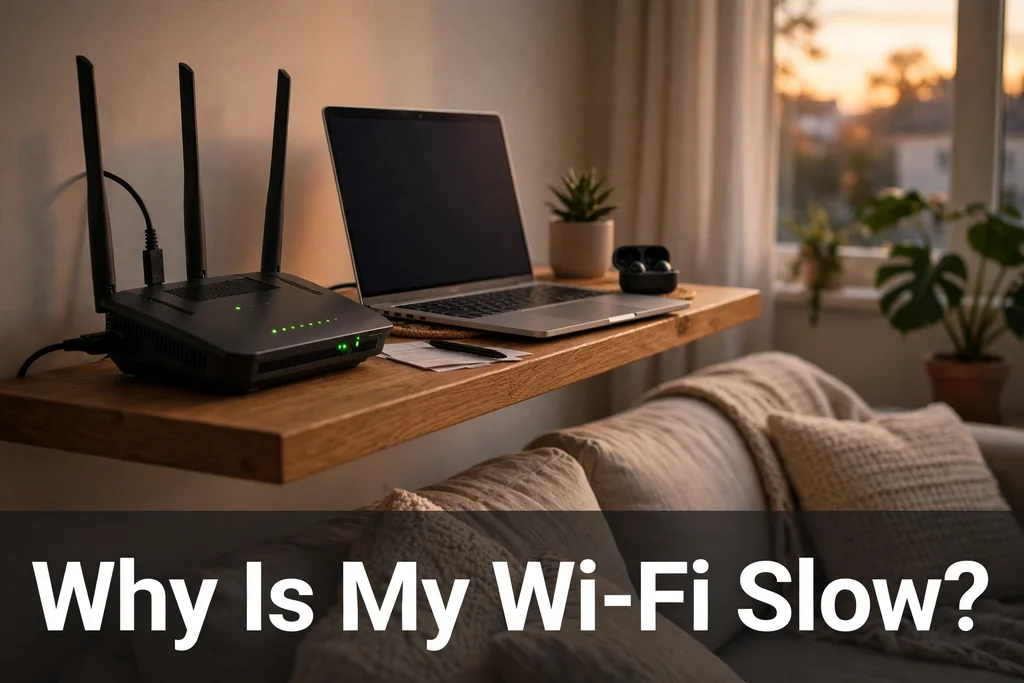
Why Is My Wi-Fi Slow? 9 Causes and Fixes That Actually Help
Your video buffers, your video call freezes, and the speed test says a fraction of what you pay for — but only in some rooms, or only at certain times. Most people blame the internet plan. The actual cause is almost always closer to home: the band your device is using, where the router sits, or how many neighbours are sharing the same airwaves. Wi-Fi is radio, and radio obeys physics. Once you understand the physics, the fixes stop being guesswork. Here are the nine most common causes, in the order worth checking them.
1. You Are Stuck on the 2.4 GHz Band
This is the single most common cause of slow Wi-Fi. Every modern router broadcasts on two frequency bands, and they trade off against each other. The 2.4 GHz band travels farther and passes through walls better, but it is slower and far more crowded — microwaves, Bluetooth devices, baby monitors, and every neighbour's router all use it. The 5 GHz band is much faster, with typical real-world speeds of 200 to 800 Mbps or more, but it loses strength quickly with distance and struggles through walls.
Devices often cling to 2.4 GHz because the signal looks stronger, even right next to the router, and then cap out around 50 to 150 Mbps in a busy building. Check which band your device is actually using — many routers name the 5 GHz network something like "NetworkName-5G" — and switch performance-heavy devices like laptops and TVs to 5 GHz when they are within a reasonable distance of the router. If your router merges both bands under one name, make sure band steering is enabled, or split the bands into separate network names so you can choose manually.
2. The Router Is in the Worst Possible Spot
Router placement is the biggest factor in real-world Wi-Fi speed. Wi-Fi is radio waves: they travel in a fairly straight line, weaken with distance, and get blocked, absorbed, or bounced by objects. A router stuffed into a closet, sitting on the floor, or shoved into a far corner because that is where the cable line comes in is handicapped before it starts — one test after another shows a badly placed router delivering a fraction of the speed of the same router placed well.
The rules follow from the physics. Put the router centrally, not in a corner: a corner router wastes most of its signal on the outside wall. Put it elevated, around 1.5 metres off the floor on a shelf, not on the floor where much of its range is wasted on the foundation. Keep it out in the open, away from metal, mirrors, brick, concrete, fish tanks, and large appliances — water absorbs Wi-Fi frequencies particularly well, and a router next to the fridge is close to the worst possible spot. A router 15 feet away through drywall will often outperform one 8 feet away through a brick wall.
3. Channel Congestion From Your Neighbours
In an apartment building or a dense neighbourhood, dozens of routers compete for the same airwaves. On the 2.4 GHz band, only channels 1, 6, and 11 do not overlap, so if you and three neighbours are all on channel 6, you are fighting for airtime. Most modern routers select channels automatically and usually do fine, but if your speeds are bad at peak hours and fine at 3 a.m., congestion is a likely culprit. A free Wi-Fi analyzer app shows which channels are crowded; switching to the least-used of channels 1, 6, or 11 can help. On 5 GHz there are far more clean channels, which is another reason to prefer it when you can.
4. Too Many Devices, or One Greedy One
Every connected device takes a share of the airtime, and most homes now have dozens: phones, laptops, TVs, speakers, cameras, smart plugs, watches. A single device doing a large cloud backup, a game download, or a 4K stream can hog the connection. Check your router's connected-devices list, and look for anything syncing or updating in the background. Some routers let you prioritise traffic — quality of service settings — so a video call gets bandwidth before a background backup does. If the slowdown starts the moment someone opens a particular app, you have found your culprit.
5. The Router Needs a Restart
It is a cliché because it works. Routers are small computers that run for months without a break, and their memory fills up, their firmware develops glitches, and their connection to the modem goes stale. Power-cycling the router — unplugging it for at least 60 seconds, then plugging it back in — fixes a surprising share of slow Wi-Fi complaints. Do the modem too if it is a separate box. If you find yourself restarting every week, that is a sign the router is failing or its firmware needs an update, not a routine to accept.
6. Old Router, Old Standards
A router from the Wi-Fi 4 era cannot deliver modern speeds no matter what plan you buy, and an old device connecting over an old standard drags the network down with it. Wi-Fi 6 and 6E mostly help when many devices are active at once; for a single device, channel selection and placement matter more. But if your router is eight or ten years old, a replacement is the fix, not a settings tweak. Check for firmware updates first — manufacturers do fix performance bugs — and if there are none, budget for a new router before paying for a faster plan.
7. Your Plan Is Slower Than You Think — or Something Else Is Using It
Before blaming the Wi-Fi, test the wired connection. Plug a laptop directly into the router with an Ethernet cable and run a speed test. If the wired speed is also far below your plan, the problem is the connection itself, not the Wi-Fi — call your provider, or check whether someone in the house is running a big download. If the wired speed is fine and only Wi-Fi is slow, the problem is in your home, and the fixes above apply. This two-minute test saves a lot of misdirected effort.
8. The House Is Too Big for One Router
Physics has a hard limit: no amount of clever placement pushes a single router's signal through three brick walls at full strength. If your home has multiple floors, thick walls, or is simply large, one router is solving a problem it structurally cannot solve alone. The fix is a second source of signal in the dead zone — a mesh system, a wired access point, or at minimum a plug-in extender. Mesh is the best option for most homes because the nodes manage themselves and your devices move between them without dropping. For a single dead room, an extender placed halfway between the router and the room often does the job.
9. Interference From Everyday Objects
Microwaves, baby monitors, Bluetooth speakers, and even some LED lights all operate near the 2.4 GHz band and can knock speeds down while they are running. If your Wi-Fi halves every time someone microwaves lunch, that is the cause. Moving to 5 GHz sidesteps most of it, since few household gadgets use that band. Mirrors and metal filing cabinets reflect signal, and a router hidden behind a TV or inside a media cabinet is effectively broadcasting from inside a box. Give the router clear air and it will repay you.
Quick Summary
Slow Wi-Fi is usually not your internet plan. The most common cause is a device stuck on the crowded 2.4 GHz band instead of the faster 5 GHz band — switch performance devices to 5 GHz when they are close to the router. Next, check placement: central, elevated around 1.5 metres, away from metal, brick, and water. Then try a 60-second restart, a less crowded channel, and a wired speed test to find out whether the problem is the Wi-Fi or the connection itself. Large or thick-walled homes need a mesh system or a second access point, since one router cannot cover them.
Frequently Asked Questions
Why is my Wi-Fi slow in one room but fast in another?
Distance and walls. Wi-Fi is radio, and it weakens with distance and gets blocked by brick, concrete, metal, and water. A room behind a brick wall or on another floor may get a fraction of the speed. Move the router more centrally, or add a mesh node or extender in the dead zone.
Is 5 GHz always better than 2.4 GHz?
Not always. 5 GHz is much faster and less crowded, but it has shorter range and struggles through walls. Use 5 GHz for devices near the router and 2.4 GHz for distant devices or smart home gadgets that do not need speed.
Does restarting the router actually help?
Yes. Power-cycling for at least 60 seconds clears stale connections and memory issues, and it fixes a large share of slow Wi-Fi complaints. If you need to restart weekly, the router may be failing or need a firmware update.
How do I know if the problem is my Wi-Fi or my internet plan?
Plug a laptop into the router with an Ethernet cable and run a speed test. If wired speed is also far below your plan, the problem is the connection — call your provider. If wired speed is fine and only Wi-Fi is slow, the problem is in your home network.
Related Guides
- Wi-Fi Keeps Disconnecting? 9 Proven Fixes (Fast & Easy)
- Why Is My Phone Battery Draining So Fast? 12 Fixes That Actually Help
- 6 Powerful Reasons Why Your Phone Is Slowing Down (And How to Fix It Fast)
External Resources
More in Tech Help
Why Is My Phone Battery Draining So Fast? 12 Fixes That Actually Help
Why Is My Phone Battery Draining So Fast? 12 Fixes That Actually Help Your phone was fine last month, and now it is begging for a charger by mid-afternoon. Nothing obvious changed, which makes it all…

What Is a VPN and Do You Need One? A Plain-English Guide
What Is a VPN and Do You Need One? A Plain-English Guide Every few months, another advertisement insists that you need a VPN or your private life is exposed. The claims are loud, the jargon is thick…

How to Ask Better Questions Online: 9 Powerful Ways to Get Clearer Answers
How to Ask Better Questions Online: 9 Powerful Ways to Get Clearer Answers Many poor online answers begin with a question that is too broad, incomplete, or difficult to understand. Search engines, AI…